
Attendance Settings
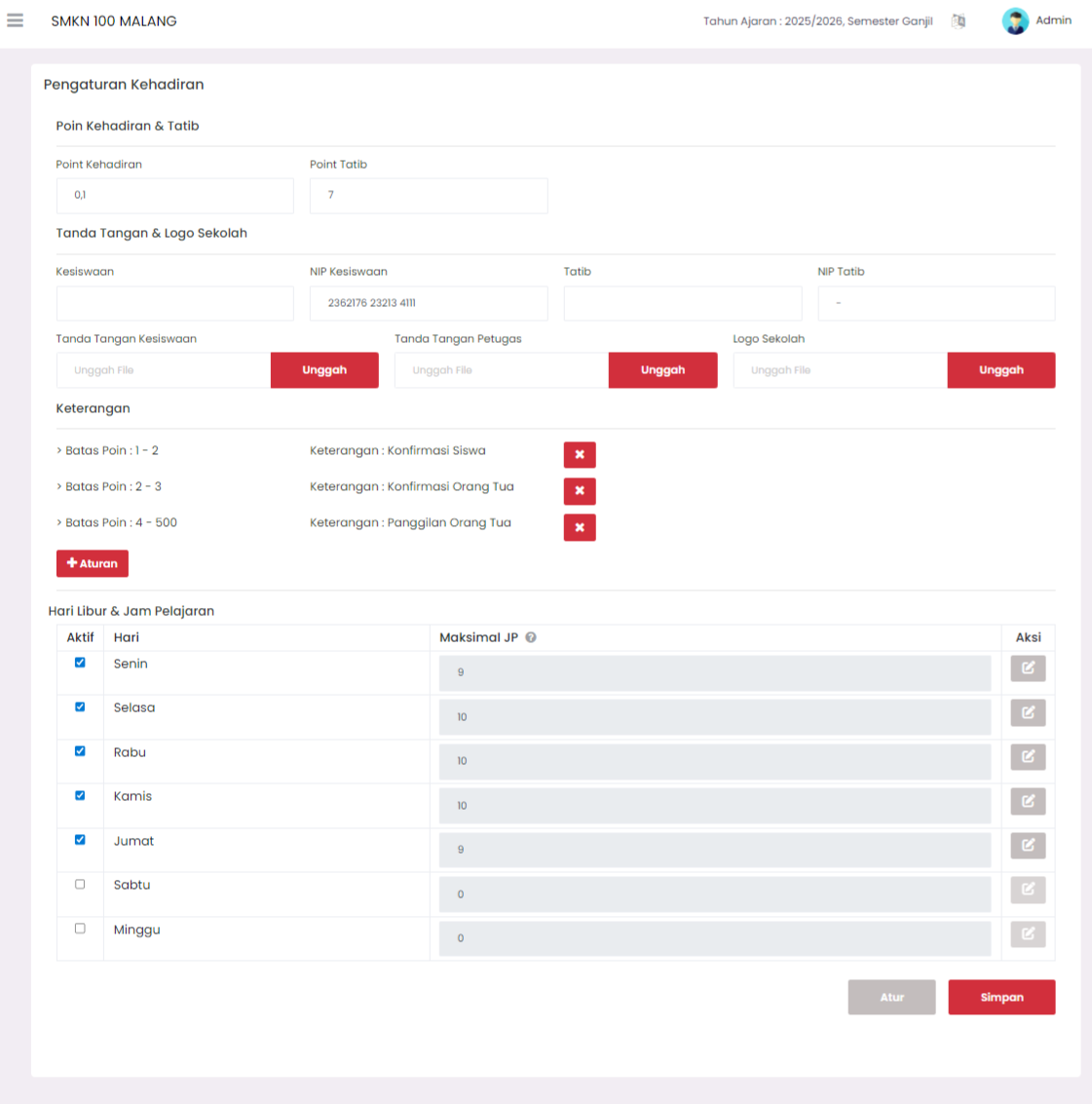
The Attendance Settings page is the control center for adjusting rules, sanction points, and school effective day schedules related to the student attendance system.
Attendance Points & Code of Conduct (Tatib)
This section is used to determine initial values used in attendance and code of conduct sanction calculations.
- Attendance Point: Decimal value used as the basis for calculating student absence points (for example,
0.1). This value is linked to the calculation of absence hours. - Code of Conduct Point: Numeric value used as the basic sanction point for code of conduct violations (for example,
7).
Signatures & School Logo
This section is used to upload the school logo, digital signatures, and record the administrative details of school officials to be displayed on printed attendance recapitulation/reports.
| Input Field | Description |
|---|---|
| Student Affairs | Name of the Vice Principal of Student Affairs (text input). |
| Student Affairs NIP | Employee Identification Number (NIP) of the Vice Principal of Student Affairs (text input). |
| Code of Conduct | Name of the Code of Conduct (Tatib) officer/coordinator (text input). |
| Code of Conduct NIP | Employee Identification Number (NIP) of the Code of Conduct officer (text input). |
| Student Affairs Signature | Digital signature image file for the Vice Principal of Student Affairs (uploaded). |
| Officer Signature | Digital signature image file for the Code of Conduct officer (uploaded). |
| School Logo | Official school logo image file specific to the attendance report header (uploaded). |
Use the Upload button to upload the appropriate signature or logo image files.
Notes (Point Limits)
This section is used to define accumulated sanction point limits and corresponding notes or actions for those point limits.
- Point Limit: You can determine the range of point limits (for example,
1 - 2,2 - 3,4 - 500). - Note: Text explaining the sanction or action that must be taken when a student reaches that point limit (for example, Student Confirmation, Parent Call).
- Adding Rules: Click the blue Rule button to add a new point limit row.
- Deleting Rules: Click the red cross button next to the note to delete a point limit that is no longer used.
Holidays & Lesson Hours (JP)
This section is used to set the active school day schedule and the maximum number of lesson hours per day. This setting will affect attendance and point calculations.
| Column | Description |
|---|---|
| Active | Check the box to mark that day as a school effective day (not a holiday). |
| Day | List of days of the week. |
| Maximum JP | Maximum number of lesson hours applicable on that day (for example, 9 or 10). Fill 0 for holidays (for example, Sunday). |
| Action | Pencil icon button to edit the Maximum JP value on that day. |
[!IMPORTANT] After finishing all settings on this page, make sure you press the red Save button at the bottom to save all changes.
Need Further Help?
If you require further assistance, contact us through the eSchool Help page.