
Question Bank
The Question Bank feature is a central repository for all questions that will be used in creating online exams. Through this feature, users (teachers/admins) can manage questions easily, from viewing, adding, to editing questions as needed.
Access Question Bank Menu
- Go to Online Exams → Question Bank menu in the sidebar.
- You will be directly directed to the Subject List page that has a Question Bank.
Question Bank Navigation Steps
Subject List Page
At this stage, users will see a list of all Subjects 📚 that already have or do not have questions yet.
- There is an indicator of the number of questions in each subject (example: "MULOK PJOK – 2").
- Click on one of the subjects to see the question bank details inside.
Question Bank List Page (Per Subject)
After selecting a subject, the system will display a list of available Question Banks. IMPORTANT: You must enter a Question Bank or create a new one before you can add questions.
- Select Question Bank → Click on an existing Question Bank (e.g., "Essay Questions" or "Multiple Choice Bank") to start managing questions inside it.
- Add New Question Bank → If no suitable Question Bank exists, click the Add Question Bank ➕ button, enter the name, and save.
Question List Page Inside Question Bank
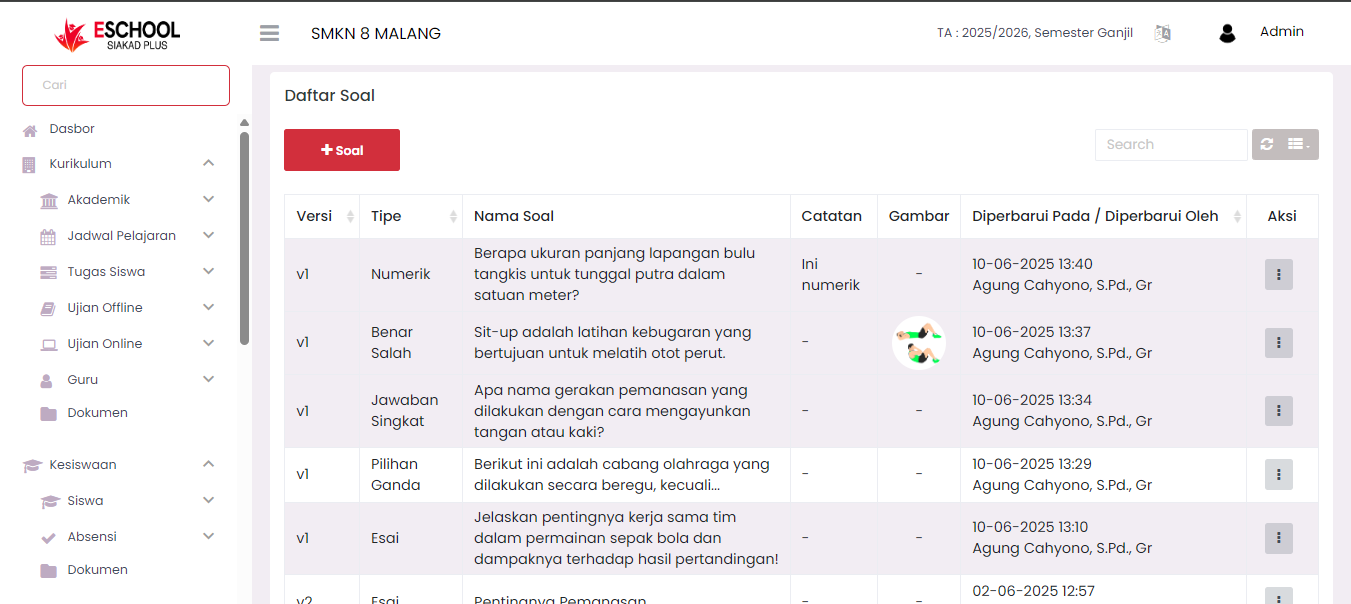
Once you enter/open a Question Bank (e.g., clicking on its name), you will be directed to the Question List Table page 📄. This is where the button to add question items is located.
On this page, complete data from existing questions will be displayed:
- 🆕 Version → Question version used.
- ✏️ Question Type → Question type (Essay, Multiple Choice, Numeric, etc.).
- 📖 Question Name → Question content.
- 🗒️ Notes → Additional notes if any.
- 🖼️ Image → If the question uses image media.
- 🕒 Updated On → Last time the question was updated.
- 👤 Updated By → Name of teacher/admin who last edited the question.
- ⚙️ Action (⋮) → To edit or delete questions.
Add New Question
Click the + Question button at the top of the table to add a new question to that Question Bank.
Main Functions of Question Bank:
- As a question repository that can be used repeatedly in various exams.
- Facilitate searching and grouping questions based on subjects and categories.
- Enable centralized & efficient question input process.
Brief Question Bank Navigation Flow:
- Enter Question Bank menu.
- Select Subject to manage.
- Select Question Bank category (Essay/Multiple Choice/etc).
- Manage questions on Question List page (Add/Edit/Delete).
Need Further Assistance?
If you require additional support, please reach out to us via the eSchool Help Page.